
HTML to PDF Converter
Convert HTML to PDF online for free with iMZi PDF. Transform websites, HTML code, and HTML files into professional PDF documents while preserving layouts, styling, images, and page structure. No software installation or registration required.
Convert HTML to PDF Online
Easily convert web pages, HTML source code, or HTML files into PDF documents directly from your browser.
The iMZi PDF HTML to PDF Converter is designed for developers, designers, businesses, students, marketers, bloggers, educators, and professionals who need a fast and reliable way to create PDFs from web content.
Whether you're saving web pages for offline reading, archiving websites, generating reports, exporting landing pages, preserving documentation, or creating printable versions of online content, this tool makes the process simple.
No software installation, signup, or technical setup is required. Just add your HTML, convert it, and download the PDF instantly.
Step-by-Step Guide to Convert HTML to PDF
Explore each step below with a fully interactive experience.
Open the HTML to PDF Tool
Visit the HTML to PDF Converter tool on iMZi PDF.
Add Your HTML
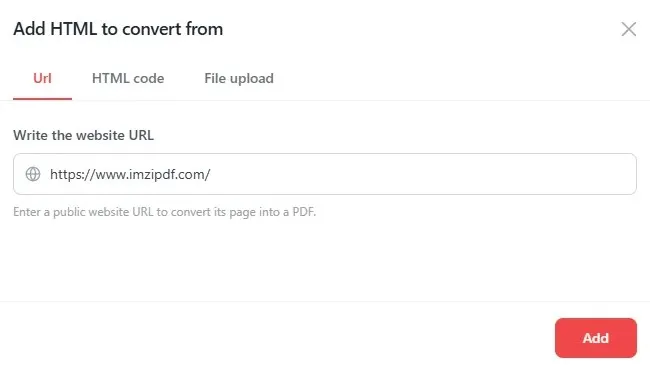
Add Website URL
Convert any publicly accessible website page into a PDF document. Just paste the full web address including the protocol (https://).
- Select URL
- Enter the website address
- Click Add
Configure PDF Settings
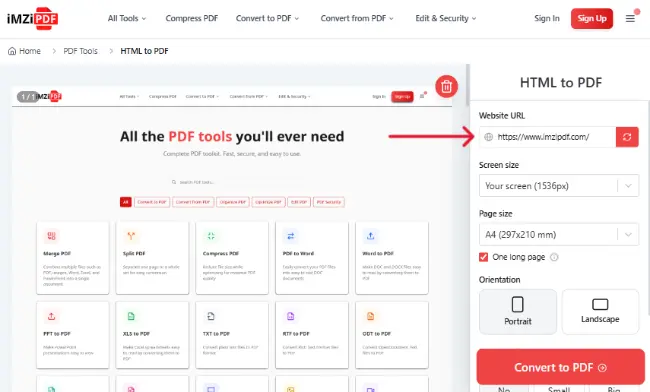
Website URL
The website URL you added will appear here.
You can update the URL at any time to convert a different webpage. After changing the URL, click the Refresh icon to load and preview the updated website before conversion.
Preview Changes Live
After making any changes to the settings above, click "Preview" to refresh the preview and apply the updated settings.
This allows you to review how the webpage will appear in the PDF before starting the conversion and make any additional adjustments if needed.

Start the Conversion
Click the "Convert to PDF" button to begin converting your HTML document into PDF format.

Download PDF
Once conversion is complete, click the download button to save your PDF document instantly.
Available Actions
- Download the file
- Save to Google Drive
- Save to Dropbox
- Share the document with others
Extra Features for Logged-in Users
- Send the document to your email
- Save the document to your account for future access

Watch: How to Convert HTML to PDF Online
Learn how to convert websites, HTML code, and HTML files into PDF documents using iMZi PDF.
1. Add HTML
Add html from Website URL, HTML Code or Html file
2. Configure Settings
Adjust the Screen size, Page size, Orientation, Margins, Long page mode.
3. Preview
Review the rendered webpage before conversion.
4. Download PDF
Generate and download your PDF instantly.

What is an HTML
HTML (HyperText Markup Language) is the standard language used to create webpages and web applications.
HTML defines
Text content
Images
Links
Tables
Forms
Layout structure
Why Convert HTML to PDF?
PDF provides a portable, printable, and universally accessible format.
Web Document Format
HTML
Flexible, editable web content designed for browsers and responsive layouts.
Professional Document Format
Preserves formatting, layout, and design for consistent viewing, sharing, and printing.
"Converting HTML to PDF preserves content in a format that can be viewed consistently across devices and operating systems."
Advantages
Benefits of PDF Format
Preserve webpage content
Save websites offline
Print webpages professionally
Archive information
Create reports from web applications
Share content easily
Popular Uses for HTML to PDF Conversion
Save Webpages
Archive articles, blogs, and documentation.
Business Reports
Generate printable reports from web dashboards.
Invoices
Convert HTML invoice templates into PDFs.
Contracts
Create professional printable documents.
Documentation
Export online documentation for offline reading.
Web Applications
Generate reports directly from web systems.
Educational Content
Save tutorials, lessons, and guides.
Marketing Pages
Archive landing pages and campaigns.
Portfolios
Convert online portfolios into printable PDFs.
Compliance Records
Store webpage content for legal or auditing purposes.
Features of HTML to PDF Converter
Website URL Conversion
Convert live webpages into PDF documents instantly.
Why Use iMZi PDF HTML to PDF Converter?
Website URL Support
Convert live webpages directly into PDF files.
HTML Code Support
Paste and render HTML instantly.
Responsive Layout Testing
Generate PDFs for desktop, tablet, and mobile layouts.
Live Preview
Review webpages before conversion.
Fast Processing
Generate PDFs within seconds.
Secure File Handling
Files are encrypted and automatically deleted after processing.
Cloud Storage Integration
Import files from Google Drive and Dropbox.
Mobile Friendly
Works on phones, tablets, laptops, and desktops.
No Software Installation
Everything runs inside your browser.
Free Online Tool
No registration required.
HTML to PDF for Different Users
Developers
Convert HTML templates and web applications into PDFs.
Designers
Export webpage designs and prototypes.
Businesses
Generate invoices, reports, and documentation.
Students
Save online resources and assignments.
Teachers
Archive educational content.
Marketers
Save landing pages and campaign assets.
Researchers
Store webpage references and articles.
Agencies
Generate client reports from web dashboards.
Best Situations to Use HTML to PDF
HTML to PDF is useful when:
Saving webpages
Creating printable documents
Exporting reports
Generating invoices
Archiving websites
Sharing webpage content
Printing documentation
Capturing responsive layouts
Storing online records
Tips for Professional HTML to PDF Results
Choose the correct screen size before converting.
Use Landscape mode for wide webpages.
Enable One Long Page for scrolling websites.
Preview content before generating PDFs.
Use A4 for standard printing.
Add margins for professional-looking documents.
Ensure webpages are publicly accessible when using URL conversion.
Verify all images and resources load correctly before conversion.
Frequently Asked Questions
Find answers to common questions about this tool.