
Video to PDF Converter Online
Convert videos into PDF documents online and for free by extracting frames, capturing screenshots, and organizing selected images into a professional PDF. Perfect for presentations, tutorials, documentation, storyboards, training materials, educational content, visual reports, and video archiving. Fast, secure, and no registration required.
or drop PDFs here
Convert Video to PDF Online
Need to convert a video into a PDF document?
The iMZi PDF Video to PDF Converter allows you to extract images from videos and combine them into a clean PDF file. You can automatically generate frames, manually capture specific moments, crop images, select only the frames you need, and create a customized PDF within seconds.
Whether you're creating training guides, visual documentation, presentation materials, storyboards, educational resources, inspection reports, product demonstrations, or video summaries, this tool provides a simple and efficient solution.
Unlike basic converters, iMZi PDF gives you full control over frame selection before generating the final PDF.
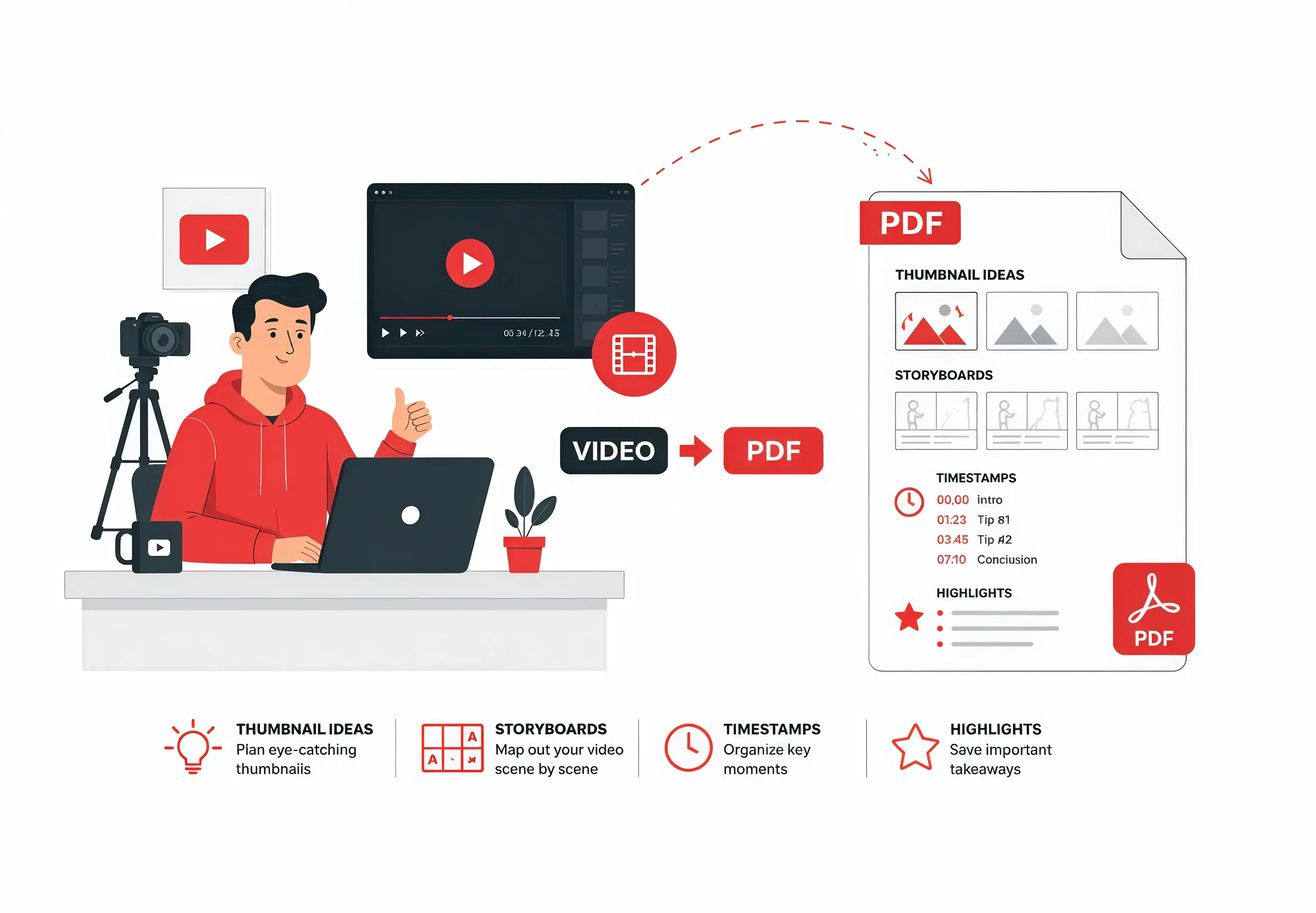
Step-by-Step Guide to Convert Video to PDF
Explore each step below with a fully interactive experience.
Open the Video to PDF Tool
Visit the Video to PDF Converter tool on iMZi PDF.
Upload Your Files
Click the “Select Video” button or drag and drop your Video file into the upload area. You can also upload files from Google Drive or Dropbox.
or drop files here
Upload files directly from:
Supported formats:
Once uploaded, the video preview and frame extraction tools become available
Choose Frame Extraction Mode
Below the video preview section, choose how many frames should be automatically extracted.
Sparse (5)
Automatically extracts 5 key frames from the video.
Best for:
- Short summaries
- Quick reports
- Simple documentation
Default (10)
Automatically extracts 10 frames.
Best for:
- General users
- Tutorials
- Presentations
- Educational material
Dense (15)
Automatically extracts 15 frames.
Best for:
- Detailed documentation
- Training materials
- Step-by-step instructions
- Technical workflows
- Process reporting

Capture Custom Frames
Need a specific moment?
Move the timeline slider below the video or play and pause the preview at the exact frame.
Then:
- Click Capture
- Or press C on desktop
The selected frame will instantly be added to your PDF image collection.
This makes it easy to capture:
- Important scenes
- Product demonstrations
- Software tutorials
- Video instructions
- Educational examples
- Training material

Select the Frames You Want
Each extracted frame includes a selection checkbox.
You can:
- Select frames to include
- Unselect unwanted frames
- Rearrange selected images
- Create a custom PDF sequence
This ensures your final PDF contains only the pages you want.

Crop Images (Optional)
Need to focus on a specific area?
Click the crop icon on any extracted frame.
The crop editor allows you to:
- Remove unwanted areas
- Focus on important content
- Adjust image composition
- Highlight details
- Improve PDF presentation
You can:
- Apply crop to a single image
- Apply the same crop to all frames
Perfect for creating professional-looking documents.


Delete Unwanted Frames
Not every extracted image needs to be included.
Simply click the delete icon on any frame to remove it from the PDF project.
This helps reduce clutter and create cleaner documents.

Generate PDF
Click Convert Now in the top-right corner.

Download PDF
Once conversion is complete, click the download button to save your PDF document instantly.
Available Actions
- Download the file
- Save to Google Drive
- Save to Dropbox
- Share the document with others
Extra Features for Logged-in Users
- Send the document to your email
- Save the document to your account for future access

Watch: How to Convert Video to PDF Online
Learn how to extract images from videos and convert them into PDF documents using iMZi PDF.
1. Upload Video
Select a video file from your device, Google Drive, or Dropbox.
2. Choose Frame Extraction Mode
Select how many automatic frames you want the system to extract from the video.
3. Capture Frames
Capture the exact moments and frames you want to include.
4. Select Frames
Choose the extracted images that should appear in your final PDF.
5. Crop Images (Optional)
Crop and adjust images to focus on important content and improve presentation.
6. Delete Frames
Remove any extracted frames that you don't want in your PDF.
7. Generate PDF
Click Convert Now to generate your PDF document.
8. Download
Download your generated PDF instantly and save it to your device.

Why Convert Video to PDF?
Videos are excellent for viewing but not always practical for documentation, printing, sharing, or archiving.
"Video to PDF conversion transforms moving content into a structured, shareable document format."
Benefits of Video to PDF Conversion
Easy Documentation
Turn videos into printable guides.
Better Sharing
Share information without requiring video playback.
Create Training Materials
Generate employee training documents.
Produce Tutorials
Build step-by-step visual instructions.
Save Important Frames
Capture key moments permanently.
Create Storyboards
Generate scene-by-scene visual layouts.
Reduce File Complexity
Share PDFs instead of large video files.
Print-Friendly Format
PDFs can be printed and archived easily.
Professional Presentation
Create clean documents from video content.
Popular Uses for Video to PDF Converter
Educational Materials
Convert lecture videos into study documents.
Training Manuals
Create employee onboarding resources.
Software Tutorials
Capture application workflows.
Product Demonstrations
Document product features visually.
Online Courses
Generate downloadable course materials.
Storyboards
Extract scenes from videos.
Security Footage
Capture important moments for reports.
Construction Documentation
Record project progress visually.
Legal Documentation
Create evidence reports from video files.
Research Projects
Extract key observations from recorded experiments.
Marketing Teams
Create visual presentations from promotional videos.
Content Creators
Generate PDF summaries from video content.
What Makes iMZi PDF Different?
Automatic Frame Extraction
Generate 5, 10, or 15 images instantly.
Manual Capture Mode
Capture exact frames from any point in the video.
Keyboard Shortcut Support
Press C to capture frames quickly.
Frame Selection Control
Choose exactly which images appear in your PDF.
Built-In Crop Tool
Crop images before PDF creation.
Fast Processing
Generate PDFs within seconds.
Browser-Based
No software installation required.
Secure Processing
Files are protected during conversion.
Automatic Deletion
Files are removed automatically after processing.
Mobile Friendly
Works on smartphones and tablets.
Supported Video Formats
The converter supports most common video formats, including:
MP4 to PDF
MOV to PDF
AVI to PDF
MKV to PDF
WebM to PDF
WMV to PDF
MPEG to PDF
M4V to PDF
Additional formats may also be supported depending on browser compatibility.
Why Use iMZi PDF Video to PDF Converter?
Free Online Tool
No registration required.
Video to PDF for Different Users
Students
Create notes from educational videos.
Teachers
Generate teaching materials.
Trainers
Build employee learning resources.
Content Creators
Turn videos into downloadable guides.
Businesses
Create documentation and reports.
Developers
Document software workflows.
Researchers
Capture important findings.
Marketing Teams
Create presentation materials.
Agencies
Deliver visual reports to clients.
Best Situations to Use Video to PDF
Convert Video to PDF when you need to:
Extract frames from video
Create training documents
Generate visual tutorials
Build educational resources
Produce storyboards
Create printable reports
Document processes
Share video content in PDF format
Archive important scenes
Create client presentations
Tips for Better Video to PDF Results
Use high-quality source videos.
Select the appropriate frame density.
Remove unnecessary frames before exporting.
Crop images for cleaner presentation.
Capture custom frames for important moments.
Arrange images logically.
Review selected frames before conversion.
Use PDF for sharing and archiving.
Frequently Asked Questions
Find answers to common questions about this tool.